
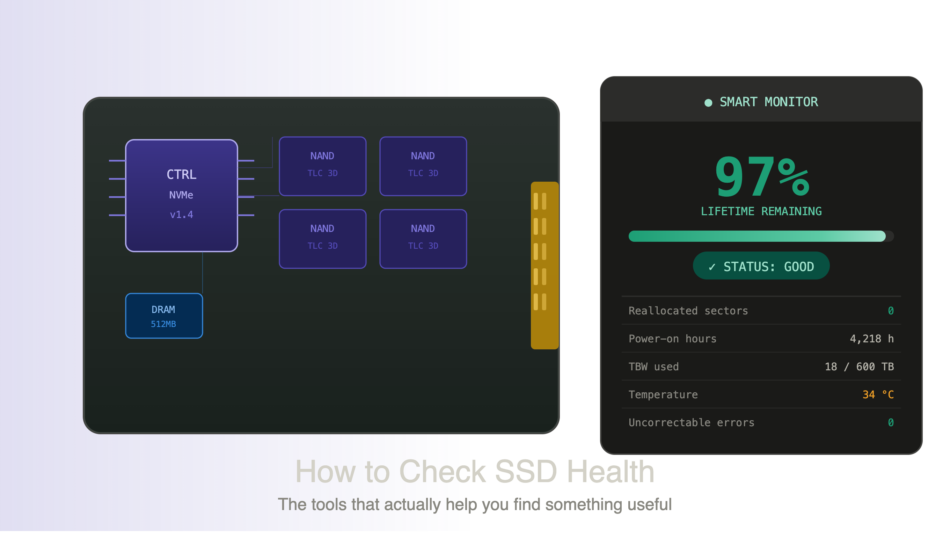
The only way to find this problem at its early stage is to check the health of SSD through many types of useful tools and remove the malicious data which will affect the health of SSD.
This article covers how to check the health of SSD on window and android which tool can give you the real data and numbers, or the graph percentage and tell about when they will stop, looking good to your SSD.
Why SSD health monitoring is different from HDD?
In the hard drive, the tools detect the mechanical components of the hard disk, like the spinning disc or the head of the hard disk. On the other hand, the SSD track something different entirely NAND flash cell exhaustion.
Every time your SSD rights data, it wears down the cell slightly. The manufacturers built a life-cycle of these cells which will be measured in TBW terabytes written or DWPD drive rides per day.
Once those cells start, failing the drive, collect data to spare the cell that the NAND flash cell kept in reserve when these reserve cells ran out of their quantity SSD will fail and put you in a serious trouble.
SMART (Self-monitoring analysis, and reporting technology) is the protocol of all the modern SSD’s used to expose the data this tool read smart attributes and translate the row value of hexadecimal into human reading data which can understand by the user.
Which numbers actually means while checking SSD health?
Before starting to check SSD health, we have to understand the SMART attributes and pay attention to them before jumping to any kind of tool.
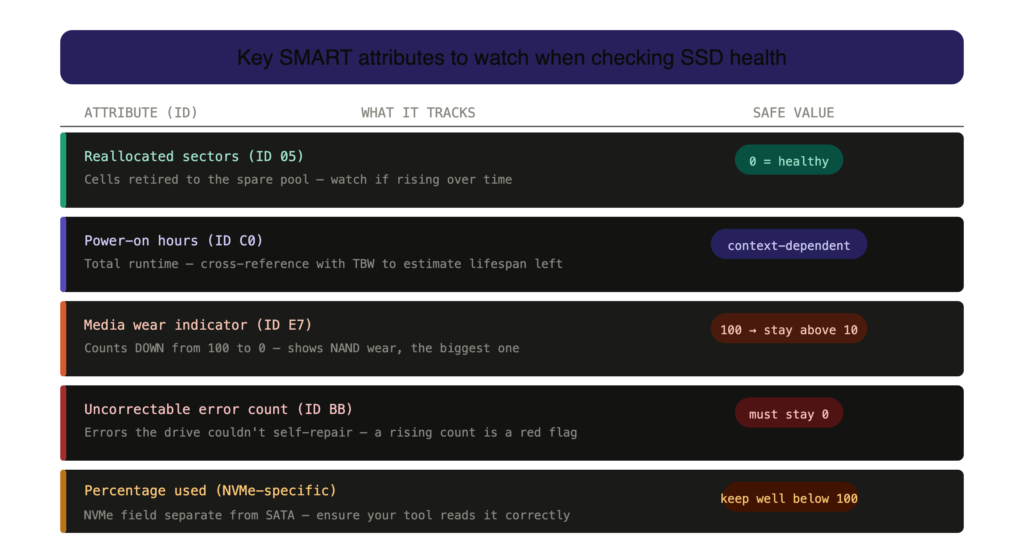
Re-allocated sectors, count (ID 05) on a SSD, this tracks that sells who have been retired to the spare pool and a known zero value didn’t mean that it is an emergency.
But value above zero deserves an attention please watch it over above the time and keeps a proper monitoring to prevent the problem.
Please keep in mind that you have to check power on hours this show that for how many hours the drives has been running useful for cross referencing with TBW2 estimate real-time data of lifespan remaining.
Media out indicator.
This is the biggest one that is counting downwards from hundred to 0. As the drives NAND wears out brands like Samsung Intel and crucial all expose this attribute but marked or label it differently.
Incorrect error count if your SSD showing errors again and again, and could not fix by self-preparing or itself, so this is the signal of your SSD all over health percentage used ( NVME).
NVME drives is dedicatedly used percent of field in NVME command, set a good tool that reads data separately from SATA smart attributes.
Which tool to use to check SSD health?
There are too many tools are found online to check your SSD health, but there are only few software tools which will give the best result without any kind of misleading result, these tools are used by professionals and the details of these tools are given below-
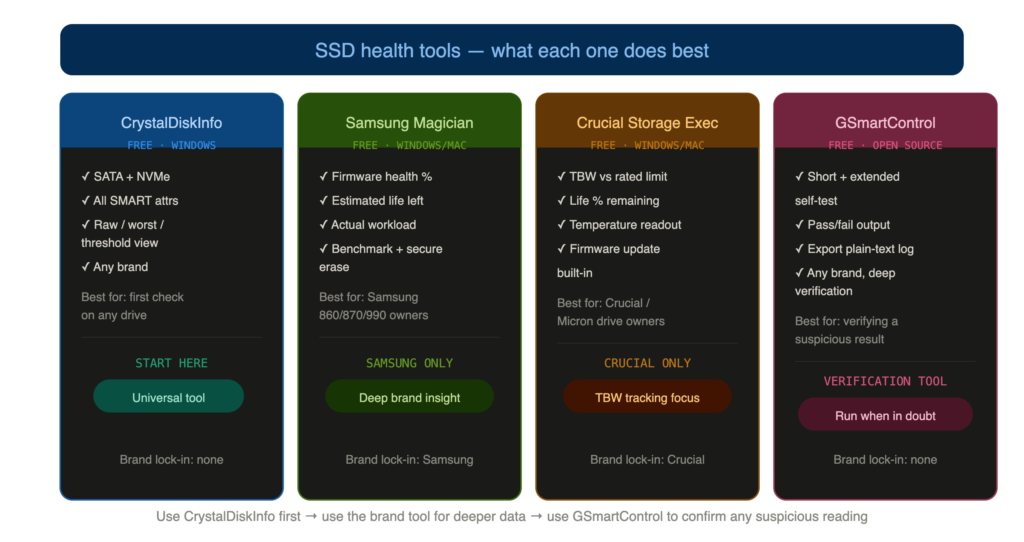
Crystal disk info
Crystal disk info reads both SATA or NVME health data and it displays all re-allocated sectors, power on hours, uncorrectable errors, and the we are indicator in a single table with raw, current, worst and threshold values for each attributes.
Samsung magician
Samsung magician reads SMART data and shows a different drive health percentage that Samsung will count from its own firmware log it also shows estimated remaining life of the SSD and actual workload of the SSD.
Crucial storage executive
It is also shows the data which will show by Samsung magician and it shows the data in total by written against the drive’s rated TBW remaining life percentage and temperature, but like Samsung magician, it is locked for crucial own hardware.
G Smart control
G Smart control is a graphical user interface front and four smart Mon tools with the open source. SMART monitoring suite it will run deeper test, short test and extended self test and lock the result with pass and fail output and export.
The result as a plane text log. It is the right tool when Crystal disc info shows some errors or suspicious, and you want to verify whether your SSD is failing or just reporting a temporary value.
Evaluation Approach
Since there is not any personal story attached with this article. but there is only some few things that we have to check when we will do a scan related to SSD health.
Start the test by running crystal disk info the first time you open look two things the overall status and the reallocated sectors count raw value. If the status is “Good”
Reallocated sectors is 0, so we can just assure that we have a good SSD health.
SSD failure follows a pattern. The reallocated error count starts climbing — from 0 to 3, then 9, then 40 — over six months, while the overall status still shows ‘Caution’ because the drive keeps remapping cells as long as it has spares.
Conclusion
Checking SSD health twice over six months is probably enough for most people’s unless they are using a home server or large file transfers, or using an older budget SSD less than 200 TBW as a primary drive check every month.
The tool will take 5 minutes to give you the report and it is worth it and real it is not any kind of guess.